
How the AI Assistant Works
Learning electronics is exciting, but the early steps can feel overwhelming. Beginners often run into several hurdles at once: deciphering pinout diagrams, dealing with messy breadboard wiring, tracking down third-party libraries, and debugging cryptic compiler errors. Many newcomers give up before they even see their first LED blink.
We built the IoT AI Assistant directly into IoTSimulator to remove that friction completely. It acts as an instant pair programmer that turns your ideas into verified circuits and working Arduino C++ code in seconds.
Behind the scenes, the assistant runs on our dedicated self-hosted model, named iotsimulator, deployed on our private VPS server using Ollama (with high-speed cloud acceleration as backup). Rather than relying on a generic chatbot that might guess random pin numbers, our model is specialized specifically for microcontroller pinouts, voltage rules, and Wokwi simulation physics.
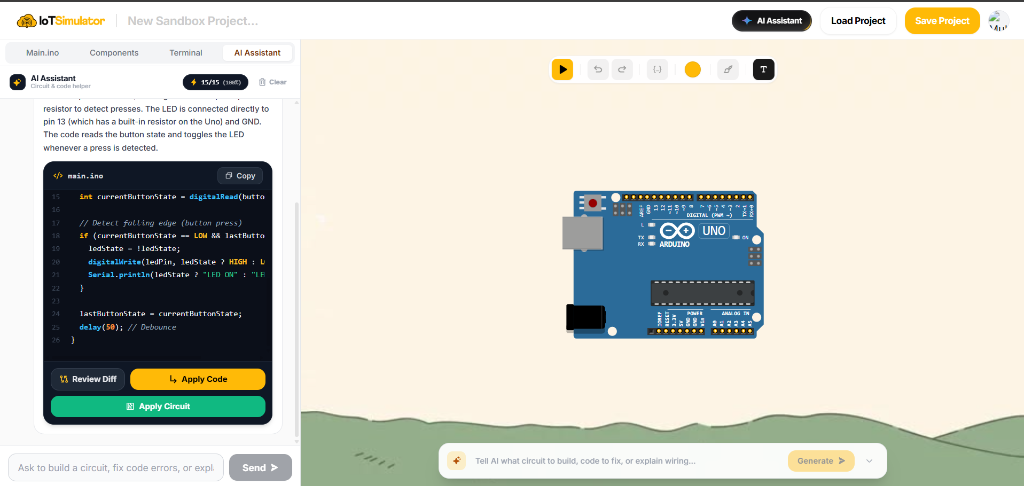
As shown in the workspace screenshot above, you can access the AI in two convenient ways depending on your current workflow:
- The AI Assistant Tab: Located on the left tab menu. This gives you the full workspace with conversation history, code review, diff comparisons, and operation mode selectors.
- The Sticky Prompt Bar: Floats at the bottom center of the canvas. You can click it anytime while looking at your breadboard to make quick changes without switching tabs.
Both interfaces connect to the same model and share your session memory, allowing you to move smoothly between deep code reviews and fast visual tweaks.
Prompting Formula & Operation Modes
You do not need complicated technical jargon to get great results from the AI. Just like describing a recipe, specifying four straightforward ingredients helps the AI understand exactly what circuit to build.
1. Pick Your Microcontroller Board
Start by stating your board: Arduino Uno, Arduino Nano, Arduino Mega, ESP32-C3, Raspberry Pi Pico, or ATtiny85. Each board has different voltage standards (5V vs 3.3V) and pin counts.
2. List Your Sensors and Modules
Mention the exact parts you need, such as an HC-SR04 ultrasonic distance sensor, a 16x2 I2C LCD screen, a push button, or a servo motor. Everyday names work great—our catalog normalizer translates them into the right simulator components.
3. Mention Specific Pins (Optional)
If you want a buzzer on digital pin 8 or a servo on PWM pin 9, say so in your prompt. If you don't mind which pins are chosen, leave this out and the AI will automatically pick conflict-free pins.
4. Explain What the Circuit Should Do
Describe the expected behavior in simple cause-and-effect terms. For example: "When the distance drops below 15 centimeters, sound the buzzer and turn on the red LED; otherwise, keep the green LED lit."
To give the assistant clear intent, you can pair your prompt with one of the four core operation modes located in the AI tab header. Each mode serves a distinct purpose during your build:
New Circuit
Fresh ProjectWipes the canvas completely clean and builds a full schematic and Arduino C++ sketch from scratch. Perfect when launching a completely new idea or switching to a different microcontroller.
Modify Canvas
Add & UpdatePreserves your existing breadboard setup and components. It finds open space on your canvas to place the new part, connects only the necessary wires, and blends the new logic into your sketch without breaking previous code.
Fix Sketch Code
Deterministic 0.1Dedicated to resolving compiler errors and runtime glitches. It runs with minimal randomness (temperature 0.1) so it doesn't invent random code. It inspects your active wiring and compiler error log to fix missing headers, wrong pin definitions, or baud rate mismatches.
Explain Logic
Tutor ModeActs as your personal electronics tutor. It leaves your canvas and code completely untouched, providing a friendly line-by-line breakdown of how the firmware functions and why each wire is connected where it is.
If you leave the mode set to Auto Detect (the default), the assistant inspects your canvas automatically: an empty board triggers a new build, while an active circuit defaults to a careful canvas update.
What You Can Do When the AI Response Arrives
When the assistant finishes generating, it presents a helpful card in the chat window containing an explanation of the circuit, a syntax-highlighted C++ code block, and a set of dedicated action buttons:
Clicking this green button automatically places the microcontroller and modules on the canvas, connects all power (VCC/GND) and signal lines with clean Manhattan paths, and loads the generated code into the sketch editor all at once.
If your physical or simulated wiring is already complete and you only want to update the logic in main.ino, this button applies just the code without touching any wires or moving components.
Opens an interactive diff viewer comparing your current sketch against the AI's proposal. Added lines are highlighted in green and deleted lines in red, giving you full control before accepting any modifications.
Located in the header of the code block. With a single click, you can copy the entire sketch to your clipboard to paste into the official desktop Arduino IDE or upload directly to real physical hardware.
Even after clicking Apply Circuit, your schematic is never frozen. You can freely click and drag any sensor, LED, or microcontroller across the canvas. Our smart wire connector automatically recalculates bend points in real time to keep your wires clean, orthogonal, and readable.
If you ever want to reset your conversation history and start a completely new design session, click the Clear button in the top right of the assistant header to wipe previous messages cleanly.
Daily Quotas & System Limits
Running dedicated neural network models to generate circuit schematics, calculate orthogonal wiring coordinates, and compile firmware requires real server resources. To keep this service fast, reliable, and completely free for our entire community, we operate a few straightforward policies:
- 15 Free Generations Daily: Every registered account receives a daily balance of 15 circuit generations (shown as 15/15 or 100% in your assistant header). This is plenty of quota to experiment, build, and debug multiple projects every day.
- Account Sign-In Required: While anyone can explore and wire circuits manually as a guest, generating schematics with the AI Assistant requires signing in to a free account. This protects the service against automated scraping and abuse.
- Automatic Midnight 00:00 UTC Reset: Your generation quota replenishes back to 100% every 24 hours at 00:00 UTC. Even if your daily quota reaches zero, you can continue wiring components, writing C++ code, and running simulations manually with zero limits.
- Zero-Loss Quota Refund: If an AI request ever fails due to a network hiccup, timeout, or busy server, our system automatically refunds that generation back to your account immediately. You never lose a prompt on a failed request.
- Fast Sub-Millisecond Guardrail: To protect your quota and keep computing resources focused on electronics, our pre-flight guardrail instantly filters out non-IoT requests (such as cooking recipes, politics, or math homework) in under 1 ms without deducting any of your daily balance.
- Concurrency & Safety Timeout: During busy workshop and classroom hours, requests pass through a concurrency queue (up to 4 simultaneous inferences) with a 45-second timeout safeguard to ensure your browser never freezes.
These policies ensure that every maker, student, and educator gets dependable generation speeds, uninterrupted simulation, and a consistent pair-programming experience on IoTSimulator.