
Arduino Fire Alarm & Gas Leak Detector with Siren and Relay

Live project track
Imagine walking into a workshop, a bakery kitchen, or a home garage. In a busy room, danger can arrive quietly in two completely different ways. An unlit stove burner can leak invisible gas into the air without any sound. Or, a stray spark can jump onto dry cardboard and create an open flame in a split second.
If you only have a smoke detector, a dangerous gas leak might fill the room completely before anyone notices. If you only have a gas sniffer, an electrical fire can spread before the gas sensor even warms up. That is why real industrial workshops use dual-threat safety monitors that watch for both hazards at the exact same time.
In this project, you will build an automated safety station using an Arduino Uno, an optical flame sensor, an MQ gas sensor, an LCD screen, an emergency relay exhaust fan, and an audible warning siren. The core concept you will master is: parallel environmental monitoring — reading two distinct physical sensors in real time and triggering instant hardware safety actions before danger spreads.
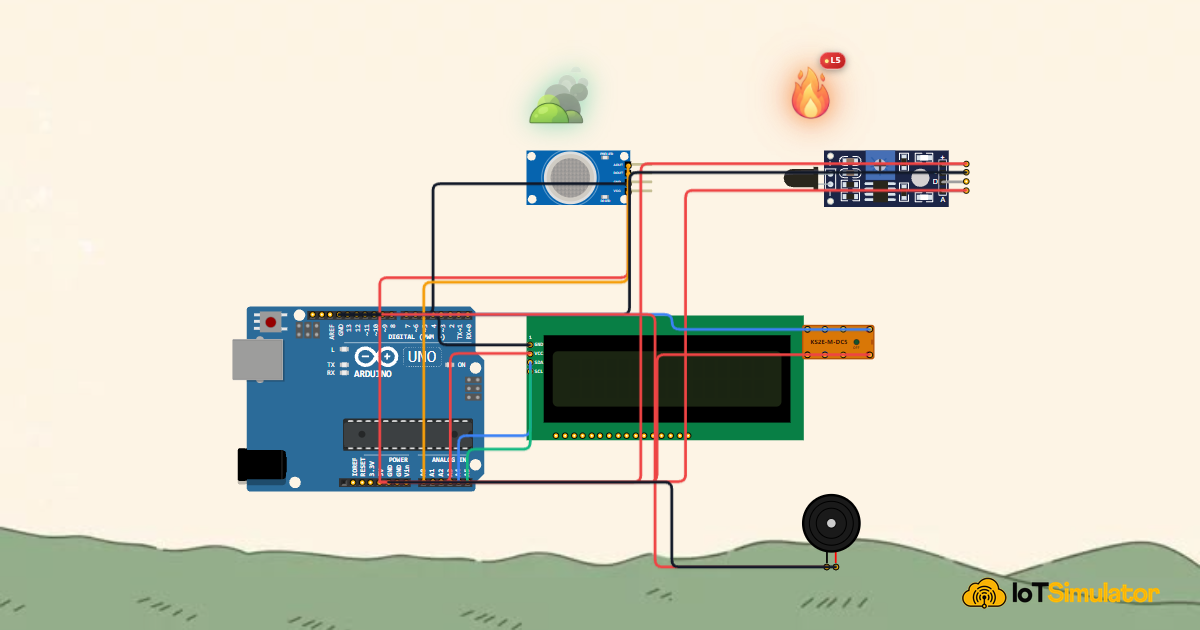
Before examining individual circuit connections, study the complete safety station architecture below. It shows how the optical flame detector, combustible gas sensor, isolation relay, and dual-tone alert sirens combine into an industrial protection node:
As depicted in the overview, detecting either smoke or flame triggers an immediate, multi-stage containment sequence. In the next section, we analyze how optical infrared photodiodes and electrochemical gas sensors translate environmental hazards into millivolt electrical signals.
Part 1 — Understand the Core Idea: Eyes and Nose Working Together
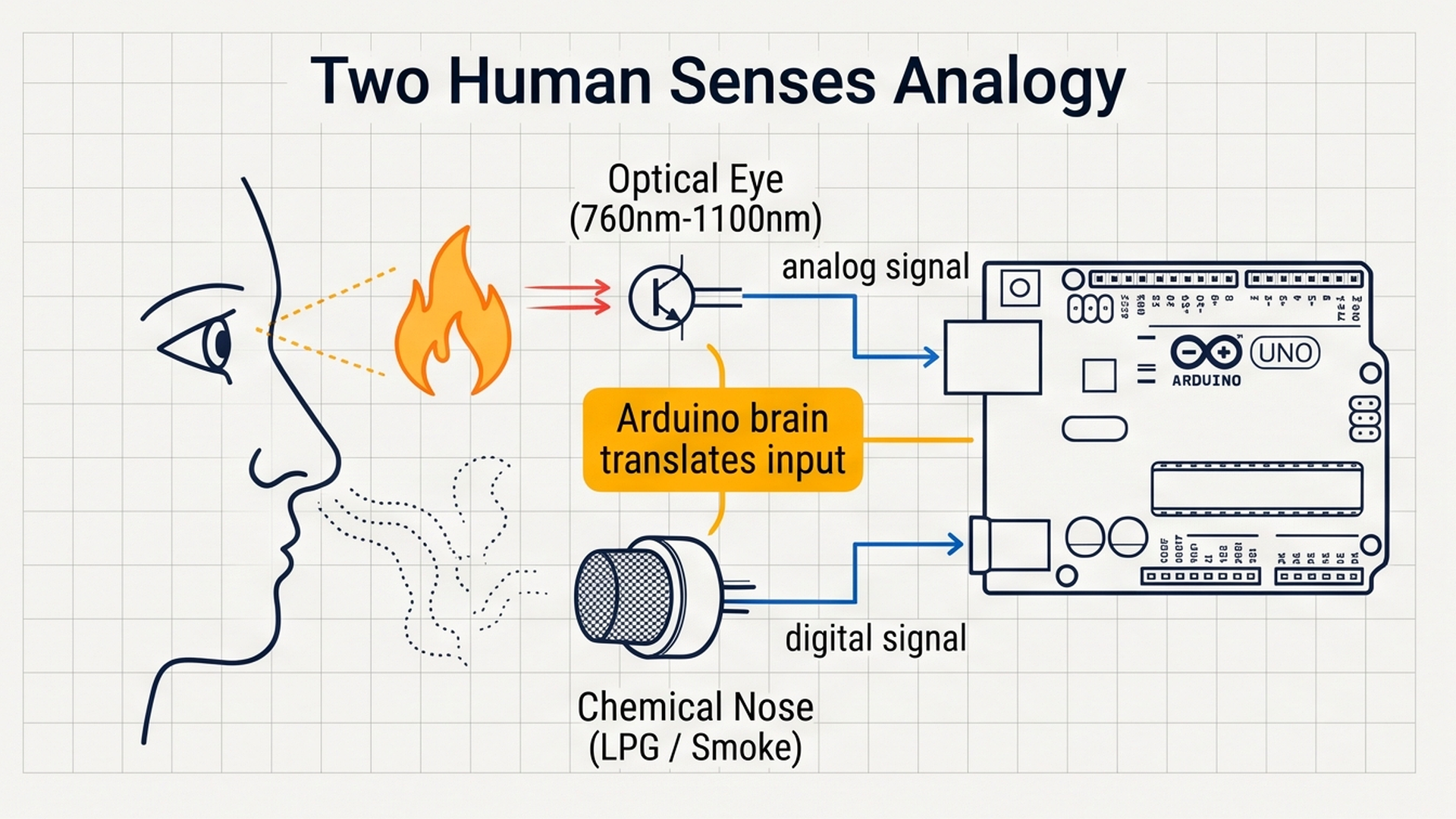
To understand how this system works, think about how your own body stays safe. You do not just rely on one sense. You use your eyes to spot a burning candle, and you use your nose to smell escaping cooking gas or burning toast in another room.
Our Arduino safety station does the exact same thing with two electronic components:
- The Optical Flame Sensor acts as the station's eyes: Open flames produce a very specific type of invisible light called infrared light (specifically around 760 to 1100 nanometers). The black phototransistor bulb on the flame sensor acts like a dedicated eye that only sees this exact fire wavelength. Because light travels instantly, this sensor detects a fire in less than 15 milliseconds.
- The MQ Gas Sensor acts as the station's nose: Combustible gases like butane, propane, methane, and thick smoke do not always emit bright light right away. The MQ sensor contains a tiny ceramic heating tube coated with a metal-oxide chemical layer. When combustible gas molecules float into the sensor chamber, they react with the heated surface and make it easier for electric current to flow through.
The comparison diagram below details how our dual hazard sensors operate simultaneously to identify fire and gas leaks before catastrophic ignition occurs:
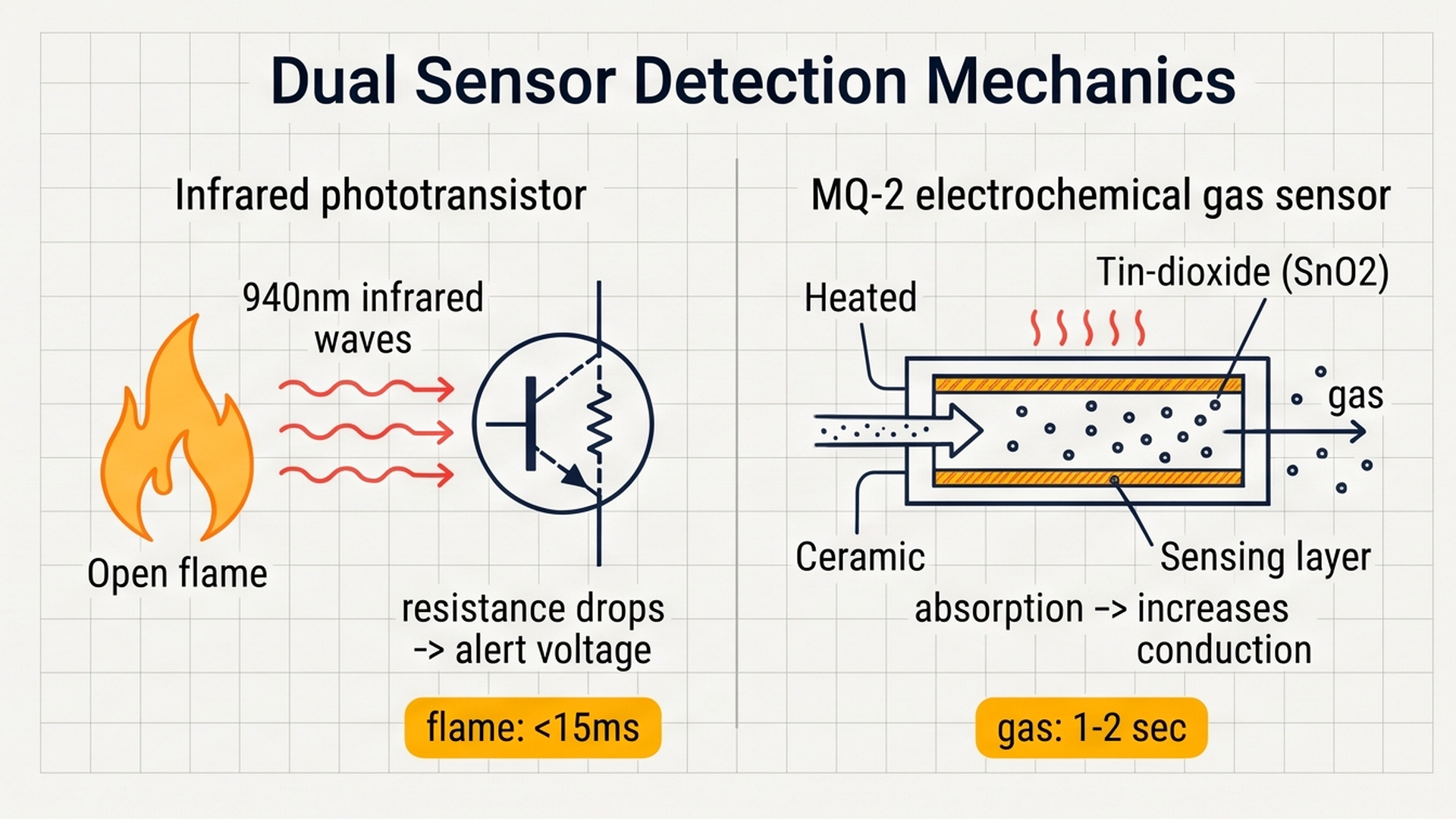
Because fire radiates distinctive infrared wavelengths while gas leaks lower the internal electrical resistance of the heated SnO2 tin-dioxide sensor surface, the Arduino detects distinct hazard signatures within milliseconds.
Because fire and gas present different types of danger, our system responds differently depending on what it detects:
| Environmental State | Flame Sensor (A1) | Gas Sensor (A0) | Exhaust Relay (Pin 8) | Buzzer Siren (Pin 9) | LCD Display Message |
|---|---|---|---|---|---|
| Normal Standby | High Voltage (> 500) | Low PPM (< 300) | OFF (De-energized) | Silent | ENVIRONMENT SAFE / GAS: xxx PPM |
| Gas Leak Warning | High Voltage (> 500) | High PPM (> 300) | ON (Ventilating Air) | 1000 Hz Pulsed Beep | GAS LEAK DETECT! / [VENT ON] |
| Fire Emergency | Low Voltage (< 350) | Any Reading | ON (Clearing Smoke) | 2200 Hz Urgent Siren | FIRE DETECTED!! / EXHAUST & SIREN |
Open flames drop the flame sensor voltage instantly because light moves at top speed, while gas sensors require 1 to 2 seconds for gas molecules to drift across the heated sensing surface.
Notice the priority in the table above: if an open flame is spotted, fire takes top priority immediately. The system switches on the exhaust fan to remove toxic smoke and blasts a high-pitched 2200 Hz siren so everyone knows to evacuate.
Part 2 — Build the Circuit: Wiring Power, Sensors, and Actuators
Before connecting individual signal pins, let us understand how electricity flows through our safety station. Every electronic circuit requires two fundamental power lines to work:
- 5V (Positive Power Line): Think of this like water flowing from a pressurized main pipe. The Arduino Uno 5V pin supplies steady electrical energy to power the internal heating element of the gas sensor, the optical comparator on the flame sensor, the LCD backlight, and the relay coil.
- GND (Ground Line): Think of this like the drainage pipe that lets water return home. Without a connected ground wire, electricity has nowhere to go, no current flows, and no sensor can take a reading. All components must share this common ground reference.
To safely switch high-power ventilation fans or emergency exhaust solenoids without exposing the delicate Arduino logic pins to dangerous voltage spikes, examine the relay isolation circuit below:
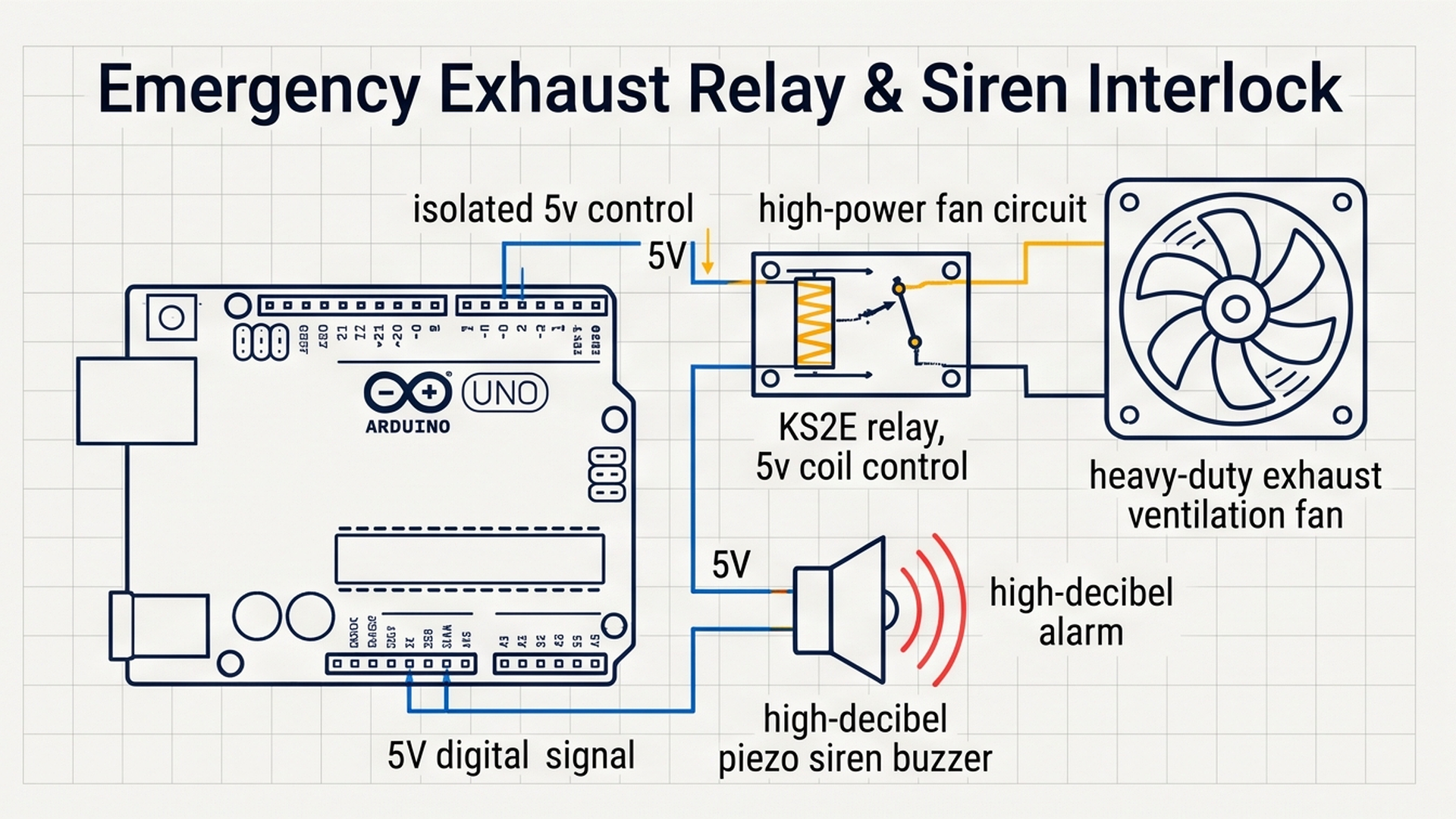
Now follow the step-by-step wiring tables below to connect each module cleanly to your Arduino Uno:
Why Did We Choose These Specific Pins?
Understanding why pins are selected helps you design your own projects with confidence:
- Analog Pins A0 and A1: Both the gas sensor and flame sensor provide continuous, variable analog signals. Using analog pins allows the Arduino analog-to-digital converter (ADC) to read 1,024 distinct voltage levels (from 0 to 1023). This lets us see exactly how much gas is in the room or how intense a flame is, rather than just a simple yes-or-no switch.
- I2C Bus on A4 (SDA) and A5 (SCL): The Arduino Uno has dedicated hardware for two-wire serial communication located on pins A4 and A5. By using the I2C protocol, we can control all 32 characters on the 16x2 LCD screen using only two wires, leaving our digital pins free for sirens and relays.
- Digital Pin 8 for Relay Control: Relays only need a binary command: HIGH (5V) to energize the internal coil and turn the fan ON, or LOW (0V) to turn it OFF. Standard digital pin 8 is ideal for this clean switching task.
- Digital Pin 9 for Piezo Siren: Pin 9 supports high-speed hardware timers. This enables the Arduino
tone()function to generate clean, rapid square waves at specific audio frequencies without slowing down sensor measurements.
Part 3 — Program the Behavior: Complete Arduino Sketch
Here is the full, tested firmware for the dual-threat hazard safety station. You can copy this code directly into your sketch or run it straight inside the IoTSimulator workspace:
#include <Wire.h>
#include <LiquidCrystal_I2C.h>

// Pin definitions matching our exact circuit
const int gasPin = A0;       // MQ Gas Sensor analog output
const int flamePin = A1;     // Flame Sensor analog output
const int relayPin = 8;      // Exhaust fan relay control
const int buzzerPin = 9;     // Emergency piezo siren

// Initialize 16x2 LCD at standard I2C address 0x27
LiquidCrystal_I2C lcd(0x27, 16, 2);

// Timing variable for periodic telemetry logging
unsigned long lastTelemetryTime = 0;

void setup() {
  Serial.begin(9600);
  Serial.println("[HAZARD]: Safety Monitoring Station Booting...");

  // Configure output control lines
  pinMode(relayPin, OUTPUT);
  pinMode(buzzerPin, OUTPUT);
  digitalWrite(relayPin, LOW); // Start with exhaust fan turned OFF

  // Initialize LCD display
  lcd.init();
  lcd.backlight();
  lcd.setCursor(0, 0);
  lcd.print(" HAZARD MONITOR ");
  lcd.setCursor(0, 1);
  lcd.print(" SYSTEM ONLINE  ");
  delay(80);
  lcd.clear();

  Serial.println("[HAZARD]: Ready. Scanning Gas & Flame Sensors.");
}

void loop() {
  unsigned long currentMillis = millis();

  // Step 1: Read raw sensor voltages
  int gasRaw = analogRead(gasPin);
  int flameRaw = analogRead(flamePin);

  // Step 2: Convert raw gas reading into estimated PPM
  int ppm = map(gasRaw, 0, 1023, 50, 1000);

  // Step 3: Evaluate threat conditions
  bool isFire = (flameRaw < 350);     // Low reading indicates flame detected
  bool isGasLeak = (ppm > 300);       // Concentration above safety threshold

  // Step 4: Act on highest priority threat
  if (isFire) {
    digitalWrite(relayPin, HIGH);     // Turn exhaust fan ON
    tone(buzzerPin, 2200, 150);       // High-pitch fire evacuation siren

    lcd.setCursor(0, 0);
    lcd.print("FIRE DETECTED!! ");
    lcd.setCursor(0, 1);
    lcd.print("EXHAUST & SIREN ");
  } else if (isGasLeak) {
    digitalWrite(relayPin, HIGH);     // Turn exhaust fan ON to clear fumes
    tone(buzzerPin, 1000, 100);       // Medium-pitch gas warning beep

    lcd.setCursor(0, 0);
    lcd.print("GAS LEAK DETECT!");
    lcd.setCursor(0, 1);
    lcd.print("PPM: ");
    lcd.print(ppm);
    lcd.print(" [VENT ON] ");
  } else {
    digitalWrite(relayPin, LOW);      // Exhaust fan stays OFF
    noTone(buzzerPin);                // Silence the buzzer

    lcd.setCursor(0, 0);
    lcd.print("ENVIRONMENT SAFE");
    lcd.setCursor(0, 1);
    lcd.print("GAS: ");
    lcd.print(ppm);
    lcd.print("PPM | OK ");
  }

  // Step 5: Send diagnostic telemetry to Serial Monitor once every second
  if (currentMillis - lastTelemetryTime >= 1000) {
    lastTelemetryTime = currentMillis;
    Serial.print("[Telemetry]: Gas=");
    Serial.print(ppm);
    Serial.print("PPM | FlameRaw=");
    Serial.print(flameRaw);
    Serial.print(" | Fire=");
    Serial.print(isFire ? "ALERT" : "SAFE");
    Serial.print(" | Exhaust=");
    Serial.println(digitalRead(relayPin) ? "ON" : "OFF");
  }

  delay(50); // Small pause for stable analog sampling
}
To visualize the state machine logic that coordinates optical warnings, rapid siren frequencies, and emergency relay cutoffs during each loop cycle, inspect the threat escalation matrix below:
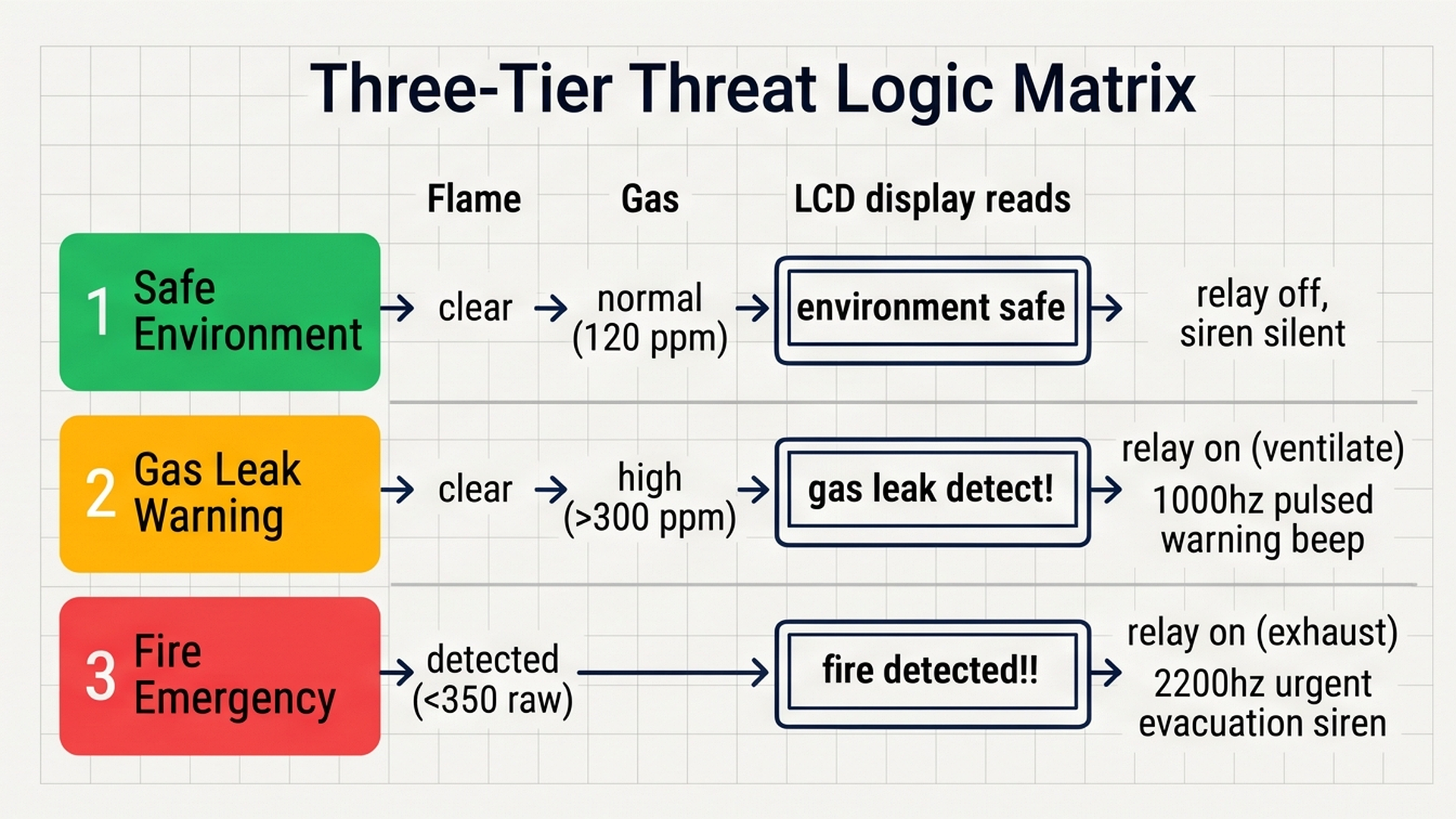
By prioritizing simultaneous flame and gas conditions as critical emergencies while handling standalone gas accumulation with active ventilation, the controller guarantees deterministic protection. Now let us walk through the complete source code line by line.
How the Code Works, Step by Step
Let us walk through each section of the code so you understand exactly what the microcontroller is doing at every moment.
1. Libraries and Pin Setup
At the top of the file, we include Wire.h and LiquidCrystal_I2C.h. These helper libraries handle all the background communication timing required by the I2C display protocol.
Next, we give clear names to our connection pins: gasPin = A0, flamePin = A1, relayPin = 8, and buzzerPin = 9. Naming your pins at the top makes your code easy to read and simple to rewire later if needed.
2. The Setup Function
Inside setup(), we open a serial communication channel at 9600 baud. This allows your computer to receive live telemetry messages through the Arduino Serial Monitor window.
We set pinMode(relayPin, OUTPUT) and pinMode(buzzerPin, OUTPUT) because the Arduino will send electrical commands out to these devices. We immediately write digitalWrite(relayPin, LOW) so the exhaust fan starts in a safe, unpowered state.
Finally, we initialize the LCD, turn on its LED backlight, and show a brief welcome message for 80 milliseconds before clearing the screen for live data.
3. Reading Sensors and Calculating Gas PPM
Inside the repeating loop() function, the microcontroller takes two fresh analog voltage readings every cycle:
int gasRaw = analogRead(gasPin); reads the voltage from the MQ sensor (a number between 0 and 1023). We use the Arduino map() function to scale this raw reading into an approximate parts-per-million (PPM) concentration from 50 to 1000 PPM.
int flameRaw = analogRead(flamePin); reads the light sensor. When no fire is present, this reading stays high (typically between 700 and 1023). When infrared light from a flame strikes the phototransistor, the sensor pulls the voltage down. If the reading drops below 350, the variable isFire becomes true.
4. Prioritizing Threats with if-else Logic
Real safety systems must handle emergencies in order of immediate danger to human life:
- First Priority (Fire): If
isFireis true, the code executes the firstifblock. It energizes the relay to turn on the exhaust fan (digitalWrite(relayPin, HIGH)), sounds an urgent 2200 Hz tone on the buzzer, and displaysFIRE DETECTED!!on the LCD screen. - Second Priority (Gas Leak): If there is no fire but
isGasLeakis true (PPM exceeds 300), the code enters theelse ifblock. It turns on the exhaust fan to clear accumulating fumes, plays a distinct 1000 Hz warning beep, and prints the exact PPM level on the LCD. - Normal State: If neither danger is present, the final
elseblock runs. The exhaust fan is turned off, the buzzer is silenced withnoTone(buzzerPin), and the screen displaysENVIRONMENT SAFEalong with the live ambient air PPM.
5. Clean Telemetry without Freezing the Processor
At the bottom of the loop, notice how we check currentMillis - lastTelemetryTime >= 1000. Instead of using a clumsy delay(1000) that would freeze the Arduino for a full second and make it blind to sudden fires, we use the internal millisecond clock. Sensor checks run rapidly every 50 milliseconds, while verbose diagnostic text is printed to the Serial Monitor only once per second.
Part 4 — Practical Testing in the Simulator
Follow these quick steps to test every safety state inside the IoTSimulator canvas:
- Test Normal Standby: Press the green Run button. Watch the LCD display light up and show
ENVIRONMENT SAFE. Check the relay indicator: the exhaust fan remains idle, and the buzzer is completely silent. - Test Gas Leak Detection: Click on the interactive Gas Cloud Actor near the top-middle of the canvas. Drag its concentration slider upward until the PPM reading rises past 300. Notice how the relay snaps ON, the LCD immediately warns
GAS LEAK DETECT! [VENT ON], and the buzzer emits a steady 1000 Hz warning chime. - Test Fire Emergency: Click on the interactive Campfire Actor on the top-right of the canvas. Activate the flame or move it closer to the Flame Sensor. Watch the LCD instantly switch to
FIRE DETECTED!! / EXHAUST & SIREN, the buzzer shift into a high-urgency 2200 Hz siren tone, and the exhaust fan stay fully energized. - Return to Safe Baseline: Turn off the Campfire Actor and slide the Gas Cloud back down to clean air levels. Within 50 milliseconds, the buzzer silences, the relay clicks off, and the display returns to calm green safety.
Part 5 — Troubleshooting Common Beginner Mistakes
If your physical build or simulation does not behave as expected, check these common pitfalls:
- Gas sensor reading is constantly high on startup: Real MQ gas sensors have a physical heating coil inside. When you first plug one into power, it takes between 2 and 5 minutes to burn off ambient moisture on the chemical layer. During this preheat phase, readings will read artificially high before settling down to clean room air.
- Flame sensor triggers even when no fire is present: The phototransistor responds to infrared light. Direct sunlight through a window, hot incandescent light bulbs, or TV remotes point-blank can emit enough infrared light to trigger the sensor. Always test in indirect room light or shield the sensor sides with a small piece of dark heat-shrink tubing.
- The relay does not click or Arduino resets when relay turns on: Mechanical relay coils consume significant electric current when energized. If your 5V power supply is weak (such as powering everything from an unpowered USB hub), turning on the relay can cause a brief voltage drop that restarts the Arduino Uno. Always make sure your USB port provides a stable 500mA supply.
- Buzzer makes clicking sounds instead of a clear tone: Make sure your buzzer is connected to digital pin 9 and that you use
tone(buzzerPin, frequency). If you accidentally connect a buzzer to a non-PWM pin or writedigitalWrite(buzzerPin, HIGH)on a passive piezo element, you will hear a faint click rather than a ringing alarm tone.
Part 6 — Taking It Further: Next Engineering Steps
Once your basic dual-threat safety station is running smoothly, consider expanding its capabilities with these practical additions:
- Add a Physical Mute Button: Wire a momentary push button to digital pin 2 with an internal pull-up resistor. When an alarm sounds, an operator can press the button to silence the siren for 60 seconds while keeping the exhaust fan actively venting the room.
- Connect a Gas Shutoff Solenoid Valve: Wire a second relay channel that controls an electric 12V brass solenoid valve on the main fuel line. If gas exceeds 400 PPM, the Arduino can instantly cut off fuel at the source before dangerous vapor reaches an ignition point.
- Add Remote Cellular / Wi-Fi Alerts: Pair your Arduino Uno with an ESP8266 or GSM cellular module to send instant push notifications or SMS messages to building managers the second a hazard is detected after hours.
More in Arduino Uno
Arduino Single-Axis Solar Tracker with Dual LDRs and Servo
Arduino Smart Parking Barrier & Slot Counter with Ultrasonic Sensor
Arduino Automatic Plant Watering & Soil Moisture Irrigation System
Arduino Digital Kitchen Scale with HX711 Load Cell and LCD
Arduino Flood Early Warning & Water Level Monitor with Ultrasonic
More in LCD1602
Arduino Single-Axis Solar Tracker with Dual LDRs and Servo
Arduino Smart Parking Barrier & Slot Counter with Ultrasonic Sensor
Arduino Automatic Plant Watering & Soil Moisture Irrigation System
Arduino Digital Kitchen Scale with HX711 Load Cell and LCD
Build a Keypad Door Lock with an Arduino Mega
More in Relay
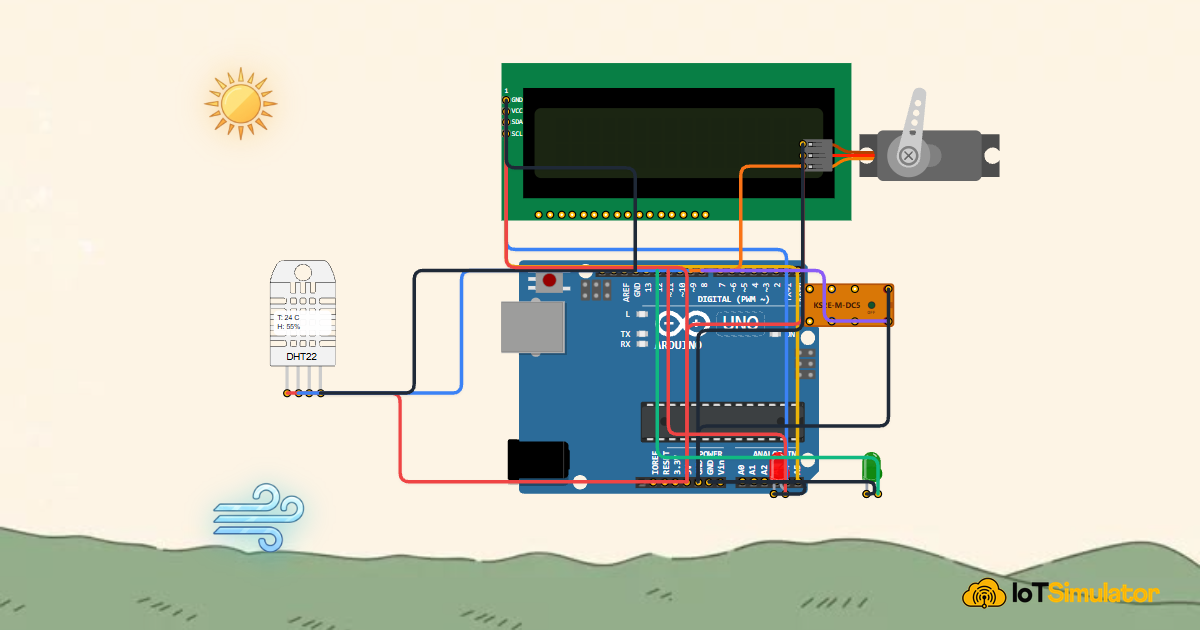
More in Buzzer
Arduino Smart Parking Barrier & Slot Counter with Ultrasonic Sensor
Arduino Flood Early Warning & Water Level Monitor with Ultrasonic
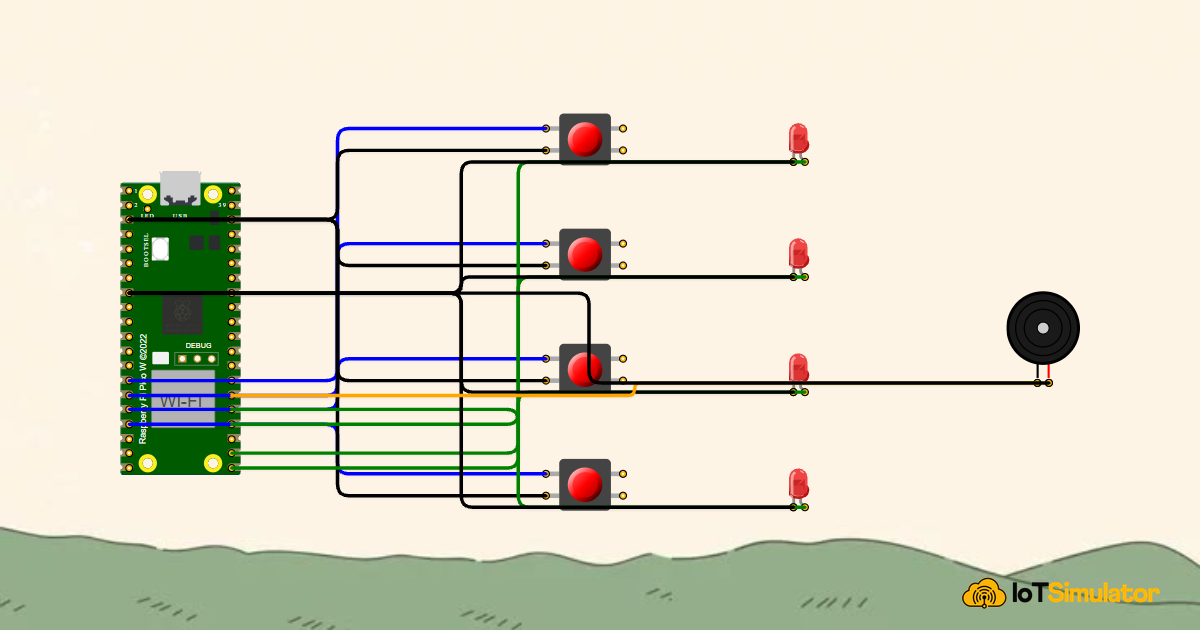
Build a 4-Key Piano Synthesizer with a Raspberry Pi Pico W
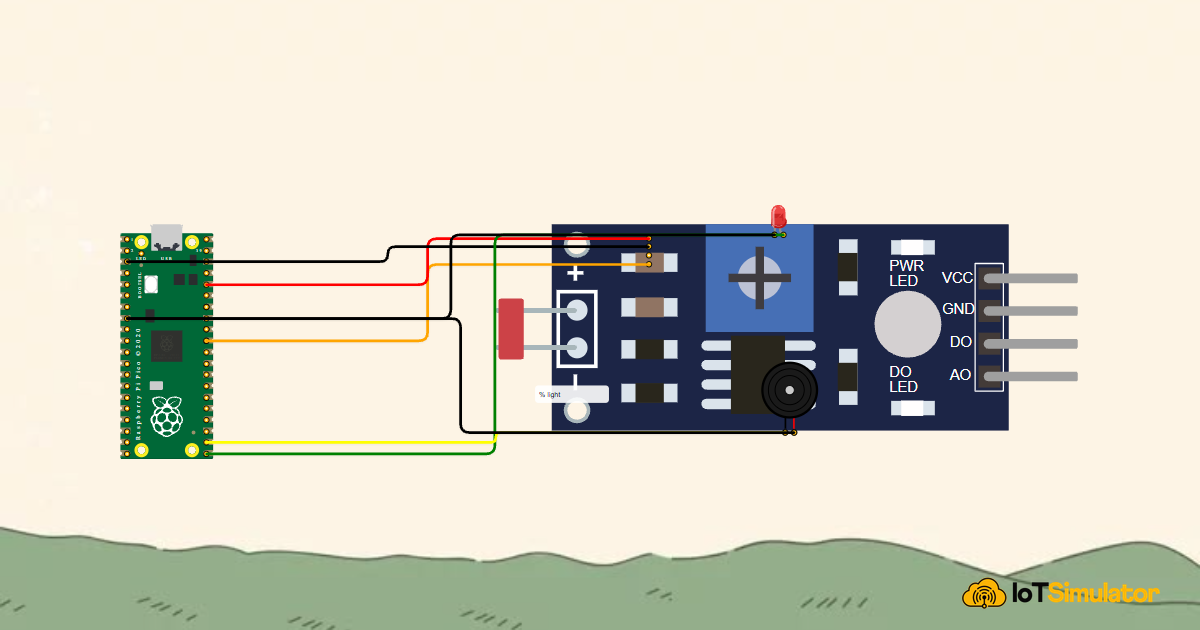
Build a Light Meter and Alarm with a Raspberry Pi Pico