Arduino Digital Kitchen Scale with HX711 Load Cell and LCD

Live project track
Have you ever watched a baker place an empty glass mixing bowl on a digital kitchen scale, press a single button to reset the display back to zero, and then scoop flour directly into the bowl with single-gram precision? Traditional spring-loaded kitchen scales are bulky, bounce up and down, and lose their accuracy over time as the metal springs stretch. Modern digital scales, however, have no moving parts and can measure a pinch of salt weighing just one gram.
How can a solid block of aluminum tell the difference between one grain of rice and two? It uses microscopic electrical changes. When you place an apple or an egg on the scale platter, the metal beam underneath bends by mere millionths of a meter. Special foil resistors glued to the metal detect that tiny flex and convert it into a readable number on a digital screen.
In this project, you will build a precision digital kitchen scale using an Arduino Uno, an HX711 24-bit load cell amplifier, a physical tare reset pushbutton, and an I2C LCD screen. The core concept you will master is: high-resolution analog amplification — reading microvolt resistance shifts across a Wheatstone bridge and dividing raw sensor counts into calibrated gram weights.
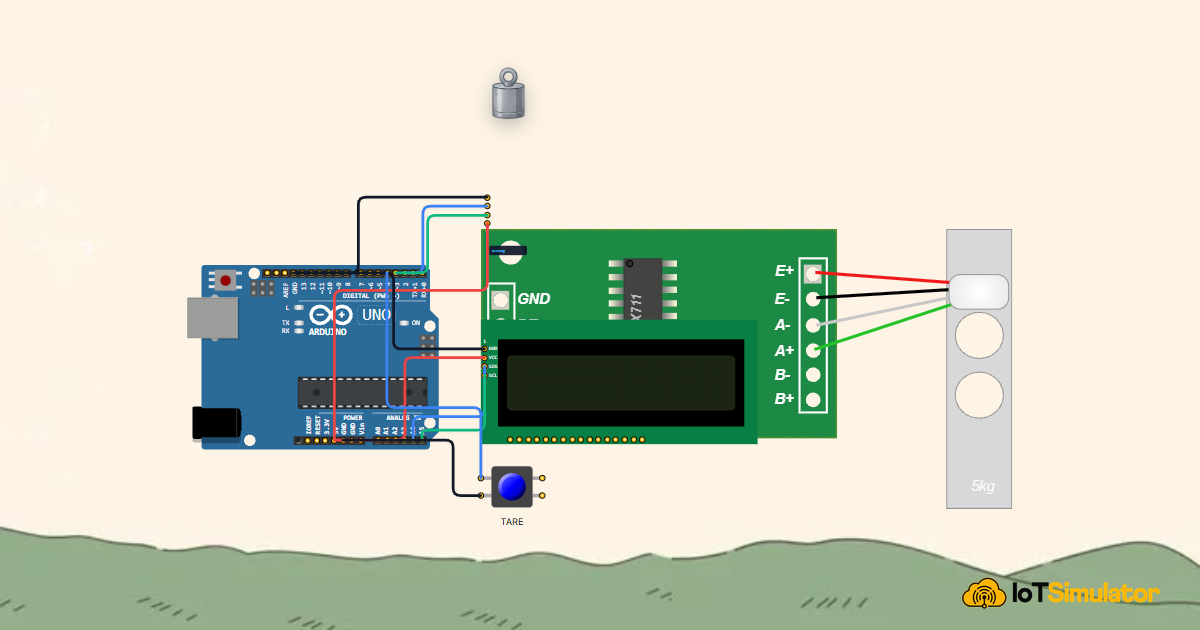
Before assembling the wiring and writing code, take a look at the mechanical overview diagram below. It illustrates how the load cell beam, tare pushbutton, HX711 preamplifier, and character LCD unite into a standalone desktop measuring scale:
As visualized above, every single gram placed onto the scale platter generates a slight bending force along the aluminum load cell. In the following section, we examine the mechanical physics of this bending action and see how tiny strain gauges convert deflection into electrical signals.
Part 1 — Understand the Core Idea: The Bending Wooden Ruler
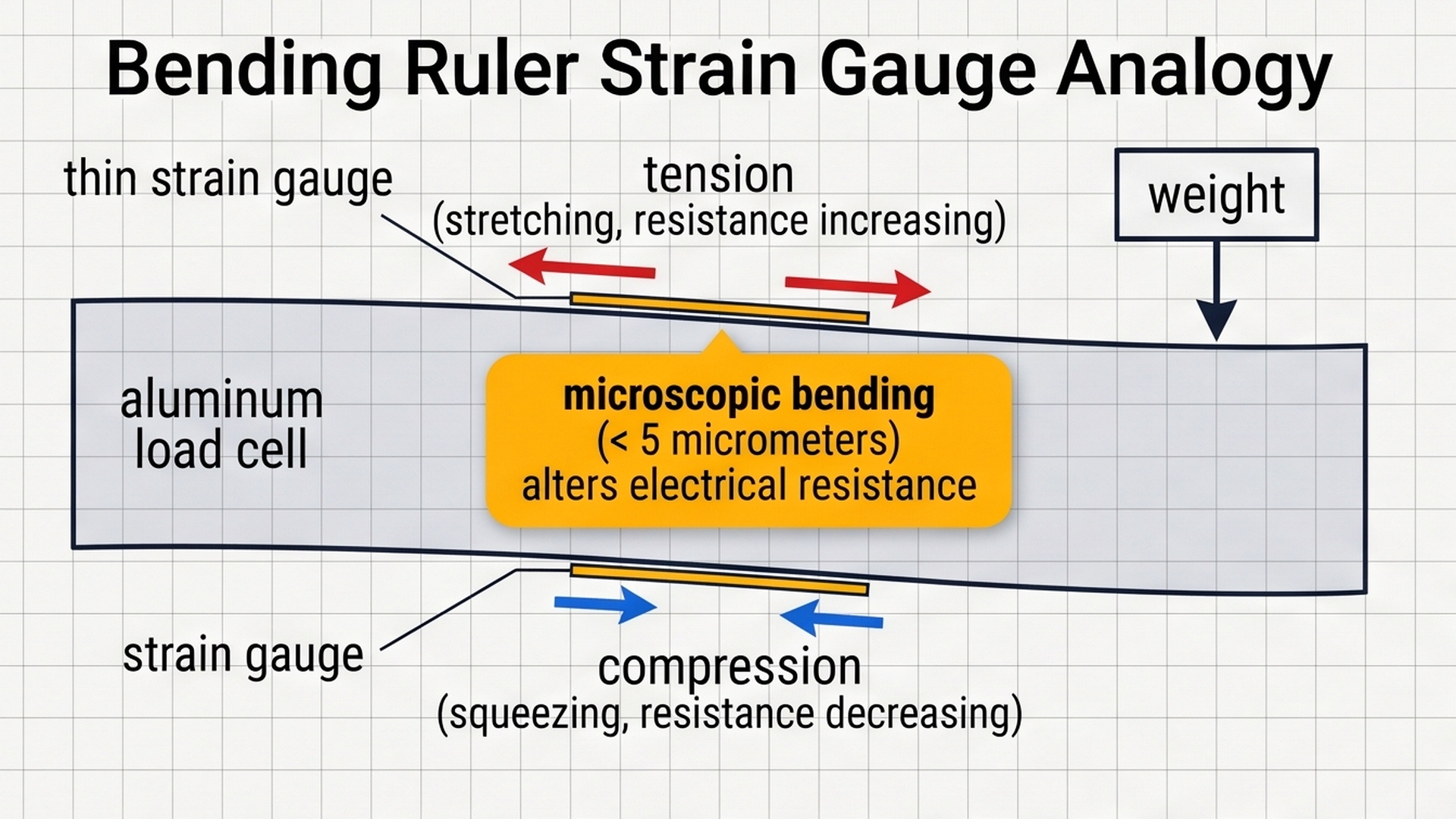
To understand how a load cell works, imagine bending a thick wooden ruler across your knee. As you press down on the ends:
- The wood fibers along the outer top curve are stretched longer (tension).
- The wood fibers along the inner underside curve are squeezed shorter (compression).
A digital scale's load cell is a precision bar of aircraft-grade aluminum machined with a hollow oval hole in the center. Glued to the top and bottom surfaces are micro-thin zig-zag metal foil patterns called strain gauges:
- When weight presses down on the scale platter, the top strain gauge stretches slightly longer and thinner. Stretching a wire makes it harder for electricity to pass through, so its electrical resistance increases.
- At the exact same time, the bottom strain gauge is compressed shorter and thicker, which lowers its electrical resistance.
Because the resistance change of a single foil gauge is far too tiny to measure directly with standard microcontroller pins, the four strain gauges are wired together into a balanced diamond configuration known as a Wheatstone bridge:
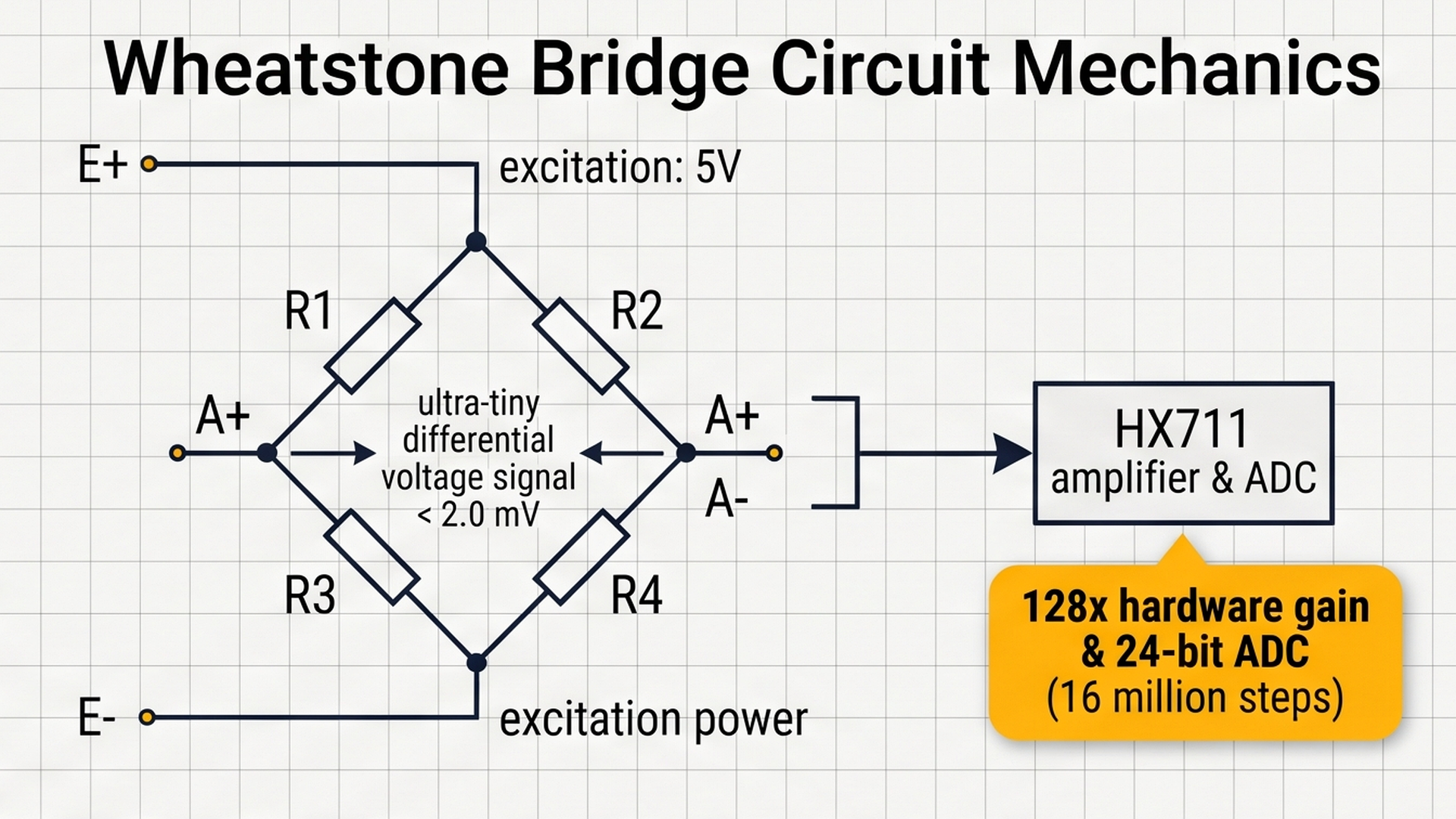
When no load rests on the scale, all four arms of the bridge are perfectly balanced, resulting in a zero-volt differential across the center sensing terminals. But the instant weight deflects the aluminum bar, the resistance imbalance produces a minute microvolt signal ready for amplification.
Why Do We Need the HX711 Amplifier Chip?
Because the aluminum bar only bends by two or three micrometers, the resulting change in voltage is extraordinarily tiny — often less than 0.002 volts (2 millivolts)!
The standard analog pins on an Arduino Uno have a 10-bit converter that slices 5 volts into 1,024 steps. Each step is about 4.9 millivolts. That means a 2-millivolt weight shift would not even trigger a single count on a standard Arduino pin!
This is where the HX711 chip saves the day. It contains an ultra-low-noise preamplifier that boosts the micro-signal by 128 times, paired with a massive 24-bit analog-to-digital converter (ADC). Instead of just 1,024 steps, a 24-bit converter gives you over 16,777,216 distinct measurement steps! This extraordinary sensitivity allows your scale to detect even the lightest feather.
Here is how physical weight translates through the system:
| Weight on Platter | Beam Deflection | Bridge Voltage | Raw ADC Counts | Calibrated Reading |
|---|---|---|---|---|
| 0 g (Empty Platter) | 0.00 μm | 0.00 mV | ~ 180,000 (Baseline) | 0.0 g [READY] |
| 250 g (One Apple) | ~ 1.25 μm | ~ 0.50 mV | Offset + 105,000 | 250.0 g [READY] |
| 500 g (Water Bottle) | ~ 2.50 μm | ~ 1.00 mV | Offset + 210,000 | 500.0 g [READY] |
| 1000 g (1 kg Bag) | ~ 5.00 μm | ~ 2.00 mV | Offset + 420,000 | Mass: 1.00 kg |
The Tare button subtracts the weight of containers like bowls or plates so your LCD displays only the net weight of the ingredients you pour in.
Part 2 — Build the Circuit: Wiring HX711, Button, and LCD
Before connecting wires to individual pins, let us understand how electrical power is routed across our scale:
- 5V (Regulated Power Line): Supplies steady positive voltage from the Arduino Uno to power the HX711 analog frontend amplifier and the I2C LCD character display.
- GND (Common Ground Line): Connects all module grounds together back to the Arduino. This establishes a clean, noise-free 0V baseline so minute microvolt signals are not distorted by stray electrical hum.
The complete breadboard and module wiring schematic below displays how every connection routes between the Arduino Uno, the HX711 breakout board, the tare button, and the I2C character LCD display:
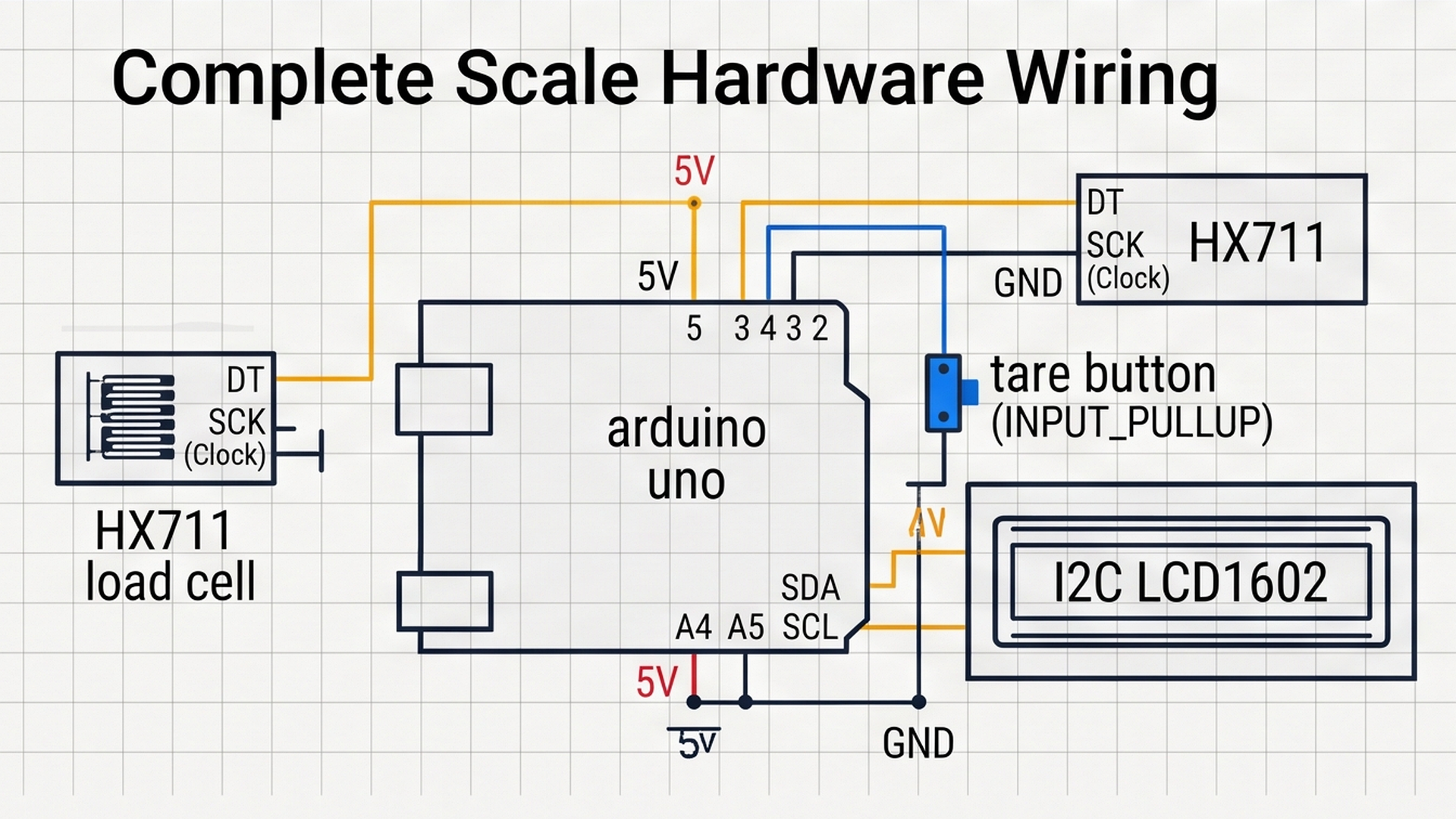
Follow the clear connection tables below to wire each module to your Arduino Uno board:
Why Did We Choose These Specific Pins?
Notice how our pin layout makes wiring straightforward:
- Digital Pins 2 and 3 for the HX711: The HX711 uses a simple serial clock/data handshake. Using pins D2 and D3 provides high-speed digital switching and leaves PWM pins free for other devices.
- Digital Pin 4 with INPUT_PULLUP for the Tare Button: By enabling the Arduino Uno's internal 20k pull-up resistor inside the microcontroller chip, we can wire our pushbutton directly to ground without needing an extra external resistor on our breadboard!
- Analog Pins A4 and A5 for the I2C LCD: Hardware I2C support allows the screen to operate over just two communication wires, keeping our build neat and clutter-free.
Part 3 — Program the Behavior: Complete Arduino Sketch
Here is the full, tested firmware for the precision digital kitchen scale. You can copy this code directly into your sketch or run it straight inside the IoTSimulator workspace:
#include <Wire.h>
#include <LiquidCrystal_I2C.h>

LiquidCrystal_I2C lcd(0x27, 16, 2);

// Hardware pin definitions matching our circuit
const int dtPin = 2;       // HX711 serial data output
const int sckPin = 3;      // HX711 serial clock pulse
const int tareBtn = 4;     // Tare zero pushbutton (active LOW with internal pull-up)

// Calibration and tare variables
long tareOffset = 0;
const float calibrationFactor = 420.0; // Raw counts per gram for standard 1kg load cell

// Helper function: reads 24-bit raw conversion from HX711 ADC
long readRawHX711() {
  long count = 0;
  pinMode(dtPin, INPUT);
  pinMode(sckPin, OUTPUT);
  digitalWrite(sckPin, LOW);

  // Shift out 24 bits using clock pulses
  for (int i = 0; i < 24; i++) {
    digitalWrite(sckPin, HIGH);
    count = count << 1;
    digitalWrite(sckPin, LOW);
    if (digitalRead(dtPin)) count++;
  }

  // 25th pulse sets channel A with 128 gain for the next conversion
  digitalWrite(sckPin, HIGH);
  digitalWrite(sckPin, LOW);

  return count;
}

void setup() {
  Serial.begin(9600);
  Serial.println("[SCALE]: Precision Digital Kitchen Scale Initializing...");

  // Configure tare button with built-in pull-up resistor
  pinMode(tareBtn, INPUT_PULLUP);

  // Initialize LCD display
  lcd.init();
  lcd.backlight();
  lcd.setCursor(0, 0);
  lcd.print("Digital Scale   ");
  lcd.setCursor(0, 1);
  lcd.print("Zero Calibrating");
  delay(1000);

  // Auto-tare baseline on startup
  tareOffset = readRawHX711();

  lcd.clear();
  Serial.println("[SCALE]: Ready. Measuring Grams & Kilograms.");
}

void loop() {
  // Check if user pressed the Tare pushbutton to zero the scale
  if (digitalRead(tareBtn) == LOW) {
    Serial.println("[Scale]: Tare button pressed! Resetting baseline to 0.0g.");
    tareOffset = readRawHX711();
    lcd.clear();
    lcd.setCursor(0, 0);
    lcd.print("Tare Reset OK!  ");
    delay(500);
    lcd.clear();
  }

  // Read current weight from load cell
  long raw = readRawHX711();

  // Subtract tare offset and divide by calibration factor
  float weightGrams = (raw - tareOffset) / calibrationFactor;
  if (weightGrams < 0) weightGrams = 0.0;

  // Print results to 16x2 LCD screen
  lcd.setCursor(0, 0);
  lcd.print("Weight: ");
  lcd.print(weightGrams, 1);
  lcd.print(" g    ");

  lcd.setCursor(0, 1);
  if (weightGrams >= 1000.0) {
    lcd.print("Mass: ");
    lcd.print(weightGrams / 1000.0, 2);
    lcd.print(" kg      ");
  } else {
    lcd.print("Status: READY   ");
  }

  delay(250);
}
To visualize how the firmware calculates clean gram measurements behind the scenes during every loop() cycle, examine the calibration and tare subtraction pipeline below:
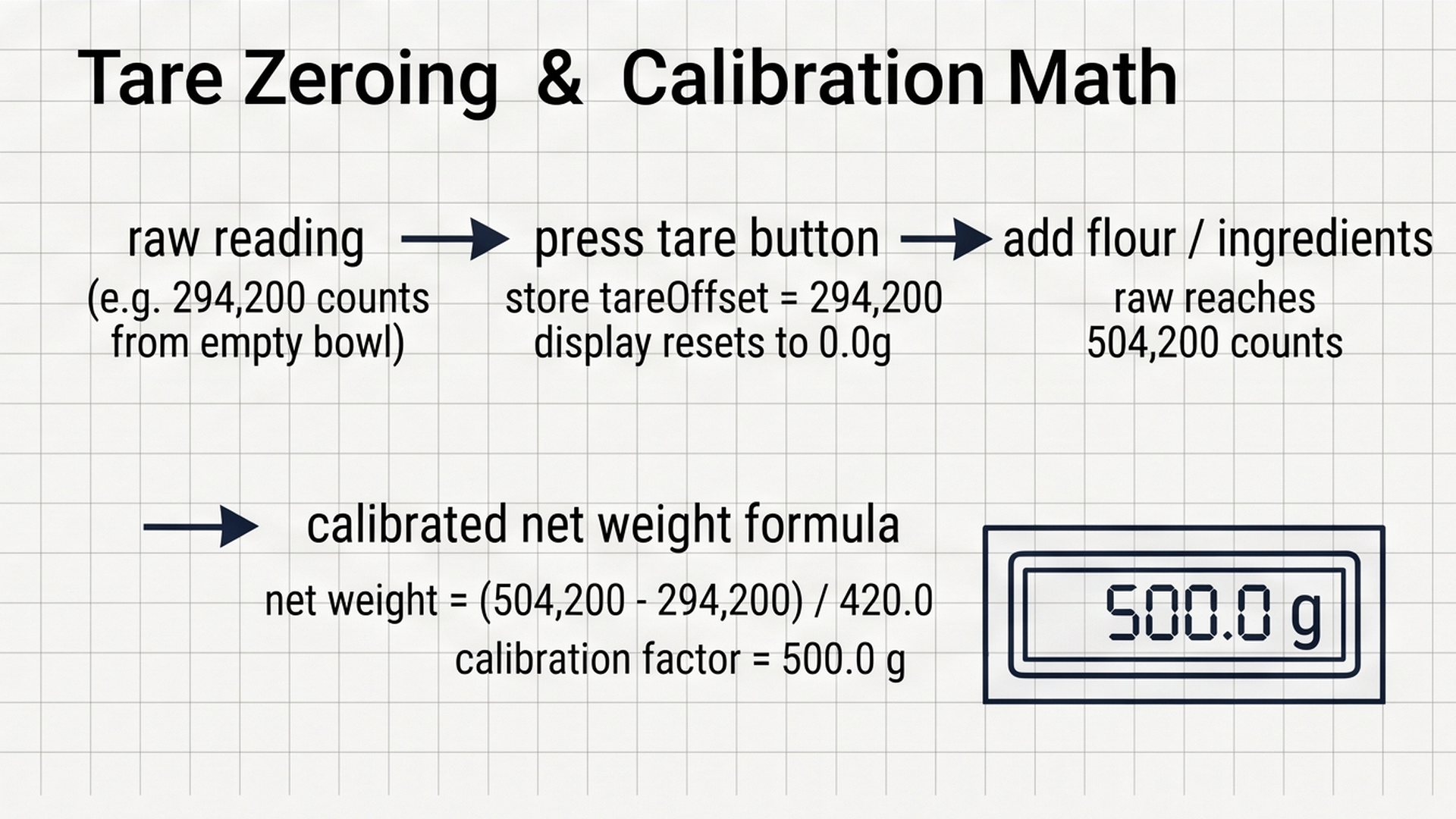
By recording the empty bowl reading as an initial tare baseline and dividing newly accumulated raw counts by our calibrated constant, the Arduino outputs true net mass with single-gram stability. Now let us walk through each section of the firmware step by step.
How the Code Works, Step by Step
Let us examine the key building blocks that turn serial data bits into accurate gram measurements.
1. Bit-Banging the 24-Bit HX711 Protocol
Notice our lightweight helper function readRawHX711(). The HX711 does not use standard I2C or SPI; it uses a proprietary serial protocol. When a measurement is ready, the chip pulls dtPin LOW.
Our code runs a loop 24 times: it pulls sckPin HIGH, shifts our count variable one bit to the left (count = count << 1), checks if dtPin is HIGH, and pulls sckPin LOW again. Finally, sending a 25th clock pulse tells the HX711 to prepare its next conversion using Channel A at 128 gain.
2. The Tare Zero Reset Mechanism
In setup(), the Arduino reads the scale while it is empty and stores the number in tareOffset = readRawHX711(). This guarantees that your scale always starts at 0.0 grams, even if there is dust or an empty plastic tray resting on the platter.
Inside loop(), we check if (digitalRead(tareBtn) == LOW). Because the button connects pin 4 to ground, pressing it pulls the pin LOW. The Arduino immediately captures a new baseline (tareOffset = readRawHX711()) and flashes Tare Reset OK! on the screen.
3. Converting Counts into Grams and Kilograms
The math is simple and elegant:
float weightGrams = (raw - tareOffset) / calibrationFactor;
- Subtracting
tareOffsetremoves the weight of any bowl or plate. - Dividing by
calibrationFactor(420.0 counts per gram for a 1kg load cell) converts raw electrical units into familiar kitchen grams. - If
weightGrams >= 1000.0, line 2 automatically displays the weight in kilograms (e.g.Mass: 1.25 kg), giving you professional dual-unit readouts.
Part 4 — Practical Testing in the Simulator
Follow these quick steps to test your digital kitchen scale inside the IoTSimulator workspace:
- Test Startup Auto-Tare: Click the yellow Run button. Watch the LCD display light up with
Digital Scale / Zero Calibratingand settle cleanly atWeight: 0.0 g / Status: READY. - Place Test Weight on Scale: Click and drag the 500g Calibrated Weight Actor from the right side directly onto the HX711 Load Cell platform. Observe the LCD update immediately to display
Weight: 500.0 g / Status: READY. - Test Container Tare Function: With the 500g weight sitting on the load cell platter, click the blue TARE pushbutton (D4). Watch the display flash
Tare Reset OK!and reset back toWeight: 0.0 g! - Remove Weight or Add More: Drag the weight actor off the load cell platform. Notice how the reading updates, and click Tare anytime to restore true zero!
Part 5 — Troubleshooting Common Beginner Mistakes
If your physical build or simulation does not behave accurately, check these common pitfalls:
- Weight readings drift slowly upward or downward: Strain gauges are sensitive to temperature changes. While a Wheatstone bridge cancels out most thermal drift, touching the metal bar with warm fingers or placing hot soup bowls directly onto an uninsulated scale plate will cause the numbers to drift. Always use a wooden or plastic spacer between your food bowl and the metal load cell.
- Readings are negative after removing a bowl: This is completely normal behavior! If you tare a 200g bowl to zero and then remove the bowl, the scale platter is now 200 grams lighter than the tare baseline, so it will read -200g. Simply tap the Tare button once more to restore absolute zero.
- Scale shows erratic or wildly jumping numbers: The HX711 is measuring microvolt electrical signals. If your wires are long, loose, or routed directly alongside noisy AC motor cables, electromagnetic noise will create interference. Keep your four load cell wires as short as possible and braid them together loosely.
- Scale displays 0.0g regardless of applied weight: Verify that your load cell is mounted with the proper mechanical clearance. An aluminum load cell must be bolted firmly at one end while the other end floats freely in the air. If the entire metal bar rests flat on a table, it cannot bend mechanically, and no weight signal can be generated!
Part 6 — Taking It Further: Next Engineering Steps
Once you have a working digital kitchen scale, consider expanding it with these advanced maker upgrades:
- Add a Units Toggle Switch: Add a second momentary button that toggles the LCD display units between Grams (g), Ounces (oz), and Pounds (lbs).
- Add Automatic Zero Tracking (AZT): Write a software filter that automatically absorbs tiny 0.1g drift changes over time while still responding briskly when a real ingredient is poured.
- Add Bluetooth Recipe Sync: Connect an HC-05 Bluetooth module to stream live gram measurements directly to a mobile baking app or nutrition diary on your smartphone.
More in Arduino Uno
Arduino Single-Axis Solar Tracker with Dual LDRs and Servo
Arduino Fire Alarm & Gas Leak Detector with Siren and Relay
Arduino Smart Parking Barrier & Slot Counter with Ultrasonic Sensor
Arduino Automatic Plant Watering & Soil Moisture Irrigation System
Arduino Flood Early Warning & Water Level Monitor with Ultrasonic
More in LCD1602
Arduino Single-Axis Solar Tracker with Dual LDRs and Servo
Arduino Fire Alarm & Gas Leak Detector with Siren and Relay
Arduino Smart Parking Barrier & Slot Counter with Ultrasonic Sensor
Arduino Automatic Plant Watering & Soil Moisture Irrigation System