Precision Digital Desktop Clock & Alarm with RTC and OLED

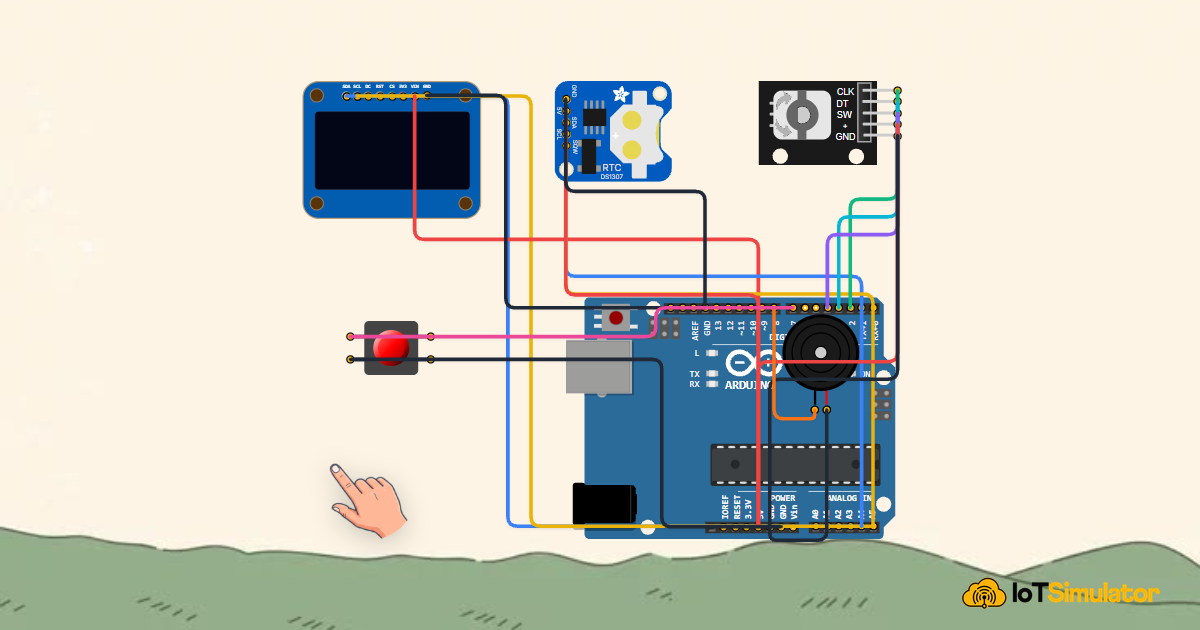
Live project track
Have you ever unplugged a digital clock and had its time reset to 12:00 blinking when you plugged it back into the wall? Standard microcontrollers forget the time the millisecond power is disconnected because they lack an internal battery-backed timekeeping crystal.
In this project, you will build a precision digital desktop clock and alarm using an Arduino Uno, a DS1307 real-time clock (RTC) module with coin-cell backup, a 0.96-inch I2C OLED display, tactile alarm buttons, and a piezo buzzer. The core concept to master is: using an external I2C hardware clock with dedicated quartz crystal to keep accurate time across power outages, formatting timestamps onto high-resolution OLED displays, and managing interactive button states.
How Real-Time Clocks Maintain Continuous Time
Think of a mechanical wristwatch wound by a spring compared to a stopwatch on your phone. A stopwatch counts elapsed seconds while the app is open, but a wristwatch keeps ticking independently in your pocket even when you are asleep.
A DS1307 Real-Time Clock module functions like an independent electronic wristwatch. It contains its own dedicated 32.768 kHz quartz oscillator crystal and a CR2032 lithium coin-cell battery. Even if the Arduino loses mains power for years, the RTC continues counting seconds, minutes, hours, days, months, and leap years silently.
| Timekeeping Source | Power Source | Time Drift | Behavior on Power Loss |
|---|---|---|---|
| Arduino millis() Clock | Main 5V USB / DC | Drifts ~ 1-2 min/day | Completely resets to zero |
| DS1307 RTC Hardware | CR2032 Coin Cell (3V) | Precision quartz crystal | Retains exact time for 5+ years |
| I2C OLED Screen | Main 5V VCC | Instant refresh (~ 30 FPS) | Displays crisp 128x64 graphics |
The Arduino communicates with both the DS1307 RTC and the SSD1306 OLED display using the shared I2C bus on pins A4 (SDA) and A5 (SCL). Each device has a unique hardware address (0x68 for the RTC, 0x3C for the OLED), allowing them to share the exact same two wires without data collision.
Tactile pushbuttons allow users to inspect alarm settings and silence buzzing alarms when the programmed wakeup time arrives.
I2C allows up to 127 distinct sensors and displays to communicate over just two shared wires (SDA and SCL) because every peripheral has a unique hex address.
Building the Desktop Clock Circuit
The Arduino Uno provides 5V power and a common GND reference to the DS1307 RTC module, the SSD1306 OLED display, and the alarm buzzer. The RTC and OLED share hardware I2C pins A4 and A5.
Tactile pushbuttons connect between digital pins D2, D3, D4 and GND using internal pull-up resistors (INPUT_PULLUP), eliminating the need for external breadboard resistors.
The Complete Desktop Clock Sketch
Below is the complete, tested Arduino sketch. It queries the DS1307 RTC, renders formatted time strings on the OLED, and sounds an alarm chime when scheduled.
#include <Wire.h>
#include <Adafruit_GFX.h>
#include <Adafruit_SSD1306.h>
#include "RTClib.h"

#define SCREEN_WIDTH 128
#define SCREEN_HEIGHT 64
Adafruit_SSD1306 display(SCREEN_WIDTH, SCREEN_HEIGHT, &Wire, -1);
RTC_DS1307 rtc;

const int buzzerPin = 7;
const int alarmHour = 7;
const int alarmMinute = 0;

void setup() {
  Serial.begin(9600);
  pinMode(buzzerPin, OUTPUT);

  if (!display.begin(SSD1306_SWITCHCAPVCC, 0x3C)) {
    Serial.println("OLED init failed");
    for (;;);
  }

  if (!rtc.begin()) {
    Serial.println("RTC init failed");
    for (;;);
  }

  if (!rtc.isrunning()) {
    rtc.adjust(DateTime(F(__DATE__), F(__TIME__)));
  }

  display.clearDisplay();
  display.setTextColor(SSD1306_WHITE);
  Serial.println("[System]: Desktop Clock Initialized");
}

void loop() {
  DateTime now = rtc.now();

  display.clearDisplay();
  display.setTextSize(1);
  display.setCursor(16, 8);
  display.print("DESKTOP CLOCK");

  // Big digital time display
  display.setTextSize(2);
  display.setCursor(16, 26);
  if (now.hour() < 10) display.print('0');
  display.print(now.hour());
  display.print(':');
  if (now.minute() < 10) display.print('0');
  display.print(now.minute());
  display.print(':');
  if (now.second() < 10) display.print('0');
  display.print(now.second());

  // Date footer
  display.setTextSize(1);
  display.setCursor(20, 50);
  display.print(now.day());
  display.print('/');
  display.print(now.month());
  display.print('/');
  display.print(now.year());
  display.display();

  // Alarm trigger
  if (now.hour() == alarmHour && now.minute() == alarmMinute && now.second() < 10) {
    tone(buzzerPin, 1000, 100);
    Serial.println("[Alarm]: Wakeup chime active!");
  } else {
    noTone(buzzerPin);
  }

  delay(1000);
}
How the Code Works, Step by Step
Let us walk through how I2C communication and display rendering are structured.
Configuring the I2C Bus and Peripherals
The sketch instantiates display and rtc using the Wire library. In setup(), both devices initialize over I2C. If the RTC has lost time due to a dead battery, rtc.adjust() automatically synchronizes it to the sketch compile timestamp.
Formatting and Rendering OLED Graphics
Inside loop(), DateTime now = rtc.now() fetches the current timestamp. The display buffer clears, prints the header, formats hours, minutes, and seconds with zero-padding (e.g., 07:05:09), and renders to screen using display.display().
Evaluating Alarm Conditions
An if condition compares current hours and minutes against alarmHour and alarmMinute. During the scheduled window, the buzzer pulses a clean 1 kHz alarm chime.
Practical Testing and Tuning
In the IoTSimulator workspace, observe the live digital clock seconds tick in real time on the crisp OLED screen. Open the code editor to adjust alarmHour and alarmMinute to test the scheduled alarm chime immediately.
More in Arduino Uno
Arduino Single-Axis Solar Tracker with Dual LDRs and Servo
Arduino Fire Alarm & Gas Leak Detector with Siren and Relay
Arduino Smart Parking Barrier & Slot Counter with Ultrasonic Sensor
Arduino Automatic Plant Watering & Soil Moisture Irrigation System
Arduino Digital Kitchen Scale with HX711 Load Cell and LCD
More in OLED Display
More in Buzzer
Arduino Fire Alarm & Gas Leak Detector with Siren and Relay
Arduino Smart Parking Barrier & Slot Counter with Ultrasonic Sensor
Arduino Flood Early Warning & Water Level Monitor with Ultrasonic
Build a 4-Key Piano Synthesizer with a Raspberry Pi Pico W
Build a Light Meter and Alarm with a Raspberry Pi Pico
More in Pushbutton
Arduino Digital Kitchen Scale with HX711 Load Cell and LCD
Build a 4-Key Piano Synthesizer with a Raspberry Pi Pico W
Control a NeoPixel Ring with an ESP32-C3
Control an RGB LED with an ATtiny85 and Push Button