WS2812 NeoPixel Ring Music VU Meter & Sound Visualizer

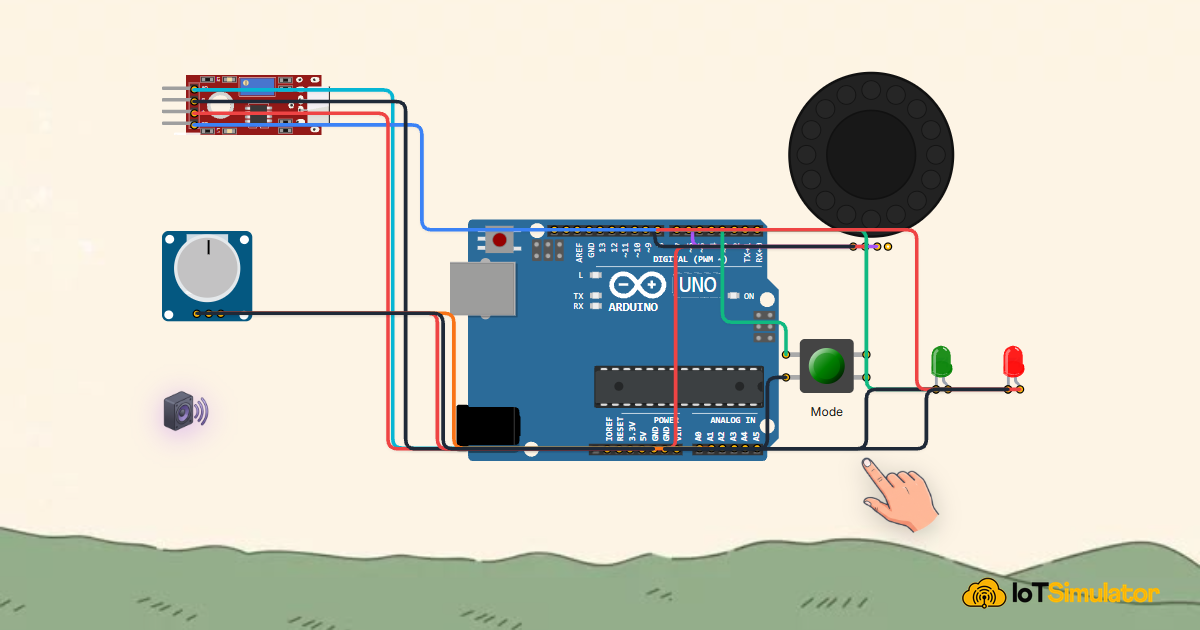
Live project track
Have you ever watched an equalizer or VU meter bounce to the beat of music at a live concert or club? Turning invisible acoustic pressure waves into dynamic pulsing rings of color creates captivating visual energy.
In this project, you will build an interactive music visualizer and VU meter using an Arduino Uno, an analog microphone sound sensor, a 16-pixel WS2812 NeoPixel RGB ring, and an effect-mode button. The one core concept to learn is: sampling analog audio amplitude waves at high frequency, mapping peak-to-peak volume into an expanding circular LED meter, and shifting color palettes dynamically.
How Analog Sound Sensing and NeoPixels Work
Think of sound waves as invisible ripples spreading across a pond. When you speak, sing, or play a drum, acoustic pressure vibrates an ultra-thin electret microphone diaphragm inside the sound module. An internal operational amplifier boosts these tiny microvolt fluctuations into a measurable 0V to 5V analog waveform.
When the room is silent, the analog output rests near 2.5V (a DC baseline reading of ~512). When loud music or a clap occurs, the waveform swings violently between 0V and 5V. By measuring the difference between the highest peak and lowest trough over a 50 ms sampling window, the Arduino calculates the true peak-to-peak volume.
| Audio Level | Peak-to-Peak Amplitude | NeoPixels Illuminated | Visual Effect |
|---|---|---|---|
| Silence / Ambient Room | Under 30 counts | 0 to 2 Pixels | Soft green idle glow |
| Moderate Speech / Music | 50 to 200 counts | 6 to 10 Pixels | Rising yellow VU arc |
| Loud Bass Drop / Clap | Over 350 counts | All 16 Pixels | Explosive red & magenta ring |
Each of the 16 WS2812 LEDs contains an integrated driver chip and three micro-LEDs (Red, Green, Blue). Unlike conventional LEDs that require individual microcontroller pins, all 16 pixels connect in series and receive data over a single high-speed 800 kHz serial digital line.
A tactile pushbutton lets users toggle between a classic expanding VU meter, a pulsing spectrum beat flash, and a smooth rotating rainbow wave.
WS2812 addressable LEDs use a single data wire by shifting 24 bits of color data (8 bits each for Green, Red, Blue) down the daisy chain from pixel to pixel.
Building the Sound Visualizer Circuit
The Arduino Uno provides regulated 5V power and a common GND reference to the microphone module and the WS2812 NeoPixel ring. 5V powers the internal microphone amplifier and the 16 RGB LEDs, while GND returns power and signal current.
The microphone analog output connects to pin A0, the NeoPixel ring data input (DIN) connects to digital pin D6, and the mode toggle button connects between pin D2 and GND using an internal pull-up resistor.
The Complete Sound Visualizer Sketch
Below is the complete, tested Arduino sketch. It samples peak-to-peak audio, computes volume levels, and illuminates the NeoPixel ring with vibrant animated colors.
#include <Adafruit_NeoPixel.h>

#define LED_PIN 6
#define NUM_LEDS 16
#define MIC_PIN A0
#define BTN_PIN 2

Adafruit_NeoPixel strip(NUM_LEDS, LED_PIN, NEO_GRB + NEO_KHZ800);

const int sampleWindow = 50; // Sample window width in ms (50 ms = 20Hz)
int visualMode = 0;          // 0: VU Meter, 1: Pulse Flash

void setup() {
  Serial.begin(9600);
  pinMode(BTN_PIN, INPUT_PULLUP);
  strip.begin();
  strip.setBrightness(80); // Moderate power brightness
  strip.show();            // Initialize all pixels to off
  Serial.println("[System]: NeoPixel Sound Visualizer Armed");
}

void loop() {
  // Check mode button
  if (digitalRead(BTN_PIN) == LOW) {
    visualMode = (visualMode + 1) % 2;
    Serial.print("[Mode]: Switched to Visual Mode: ");
    Serial.println(visualMode);
    delay(250);
  }

  // Measure peak-to-peak amplitude over sample window
  unsigned long startMillis = millis();
  unsigned int peakToPeak = 0;
  unsigned int signalMax = 0;
  unsigned int signalMin = 1024;

  while (millis() - startMillis < sampleWindow) {
    int sample = analogRead(MIC_PIN);
    if (sample < 1024) {
      if (sample > signalMax) signalMax = sample;
      if (sample < signalMin) signalMin = sample;
    }
  }
  peakToPeak = signalMax - signalMin;

  // Map volume to 0 - 16 pixels
  int numLedsLit = map(constrain(peakToPeak, 10, 400), 10, 400, 0, NUM_LEDS);

  strip.clear();
  for (int i = 0; i < numLedsLit; i++) {
    if (visualMode == 0) {
      // Classic Green -> Yellow -> Red VU Meter
      if (i < 8) strip.setPixelColor(i, strip.Color(0, 255, 0));       // Green
      else if (i < 13) strip.setPixelColor(i, strip.Color(255, 200, 0)); // Yellow
      else strip.setPixelColor(i, strip.Color(255, 0, 0));             // Red
    } else {
      // Dynamic Cyan & Magenta Beat Pulse
      strip.setPixelColor(i, strip.Color(i * 15, 255 - (i * 15), 255));
    }
  }
  strip.show();
}
How the Code Works, Step by Step
Let us examine how peak audio sampling and pixel coloring are managed.
Configuring NeoPixel Ring and Pins
The sketch instantiates Adafruit_NeoPixel on pin 6 with 16 LEDs. strip.setBrightness(80) limits maximum current consumption so the Arduino can safely power the ring directly over USB.
Measuring Peak-to-Peak Wave Amplitude
A while loop runs for 50 milliseconds, repeatedly calling analogRead(MIC_PIN) and tracking the highest (signalMax) and lowest (signalMin) voltage peaks. Subtracting min from max eliminates DC bias drift.
Rendering the Multi-Color VU Meter Arc
The variable peakToPeak is mapped to 0-16 LEDs. In Mode 0, lower pixels turn green, mid-range pixels glow yellow, and the top three pixels flash intense red when volume peaks.
Practical Testing and Tuning
In the IoTSimulator environment, click on the Interactive Sound Environment slider. Drag sound volume from 10% up to 90% and observe the NeoPixel ring ignite from a calm green idle arc to a full circular red VU surge. Click the Pushbutton to toggle between visualization palettes.
More in Arduino Uno
Arduino Single-Axis Solar Tracker with Dual LDRs and Servo
Arduino Fire Alarm & Gas Leak Detector with Siren and Relay
Arduino Smart Parking Barrier & Slot Counter with Ultrasonic Sensor
Arduino Automatic Plant Watering & Soil Moisture Irrigation System
Arduino Digital Kitchen Scale with HX711 Load Cell and LCD
More in NeoPixel Ring
More in Sound Sensor
More in Potentiometer
Arduino Automatic Plant Watering & Soil Moisture Irrigation System
Control a Servo Positioner with a Raspberry Pi Pico
Control a Servo with an ESP32-C3 and Potentiometer
Control a NeoPixel Ring with an ESP32-C3
Control a Servo with an ATtiny85 and Potentiometer
More in Pushbutton
Arduino Digital Kitchen Scale with HX711 Load Cell and LCD
Build a 4-Key Piano Synthesizer with a Raspberry Pi Pico W
Control a NeoPixel Ring with an ESP32-C3
Control an RGB LED with an ATtiny85 and Push Button
Send an SOS Signal with an ATtiny85 and a Buzzer
More in LED
Arduino Smart Parking Barrier & Slot Counter with Ultrasonic Sensor
Arduino Smart Solar Streetlight with LDR and PIR Motion Sensor
Build a 4-Key Piano Synthesizer with a Raspberry Pi Pico W
Build a Smart Climate Monitor with a Raspberry Pi Pico W